
Model Context Protocol (MCP)
Kleene supports Model Context Protocol (MCP), allowing authorised AI assistants such as Claude, ChatGPT, Cursor, and other MCP-compatible tools to connect securely to your Kleene.ai account.
Use Kleene MCP to inspect transforms, generate SQL, explore schemas, troubleshoot pipeline errors, and write approved changes to sandbox from the AI client your team already uses.
Prerequisites
Before you connect an AI assistant:
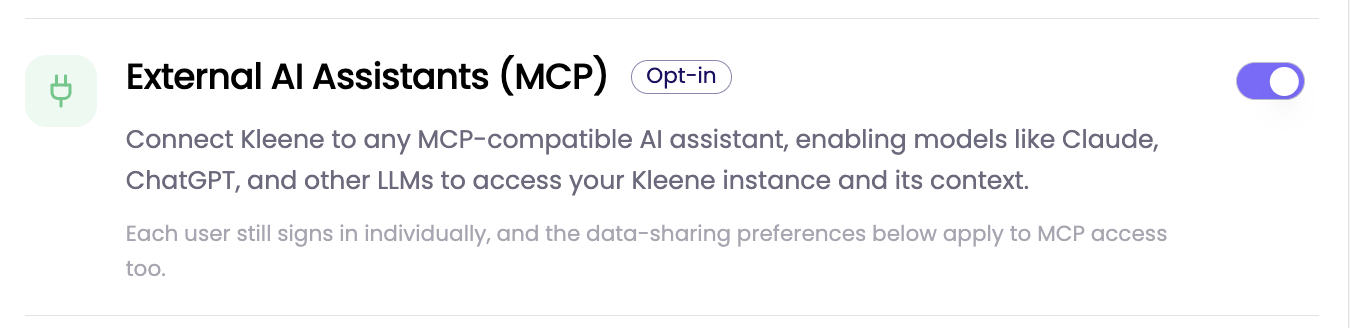
- Enable External AI Assistants (MCP) in Kleene.
- Use a Kleene account with permission to access the workflows, transforms, schemas, or pipeline runs you want to query.
- Use an AI client that supports MCP connectors or custom apps.
Setup
Enable MCP in Kleene
- Go to App Settings → AI.
- Turn on External AI Assistants (MCP).
Connect Claude
-
Open Claude.
-
Ask a claude admin who has access to add connectors
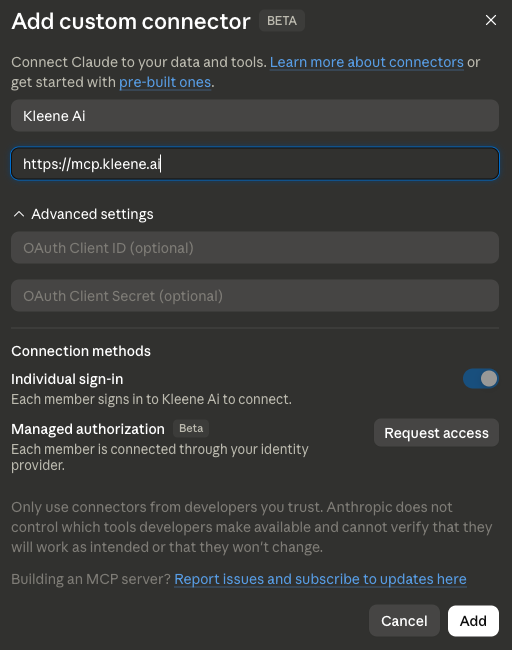
- Go to Customize → Connectors.
- Click + → select Add Custom connector
- Give the
-
Name - Kleene
-
Remote MCP Server URL - https://mcp.kleene.ai
-
Enable Individual sign-in
-
Click Add
-
-
As a user navigate to Customize → Connectors.
-
Search for KleeneAI.
-
Click Connect.
-
Sign in to Kleene when prompted.
-
Approve access.
-
Start asking questions about your Kleene workflows.
Connect ChatGPT
-
Open ChatGPT.
-
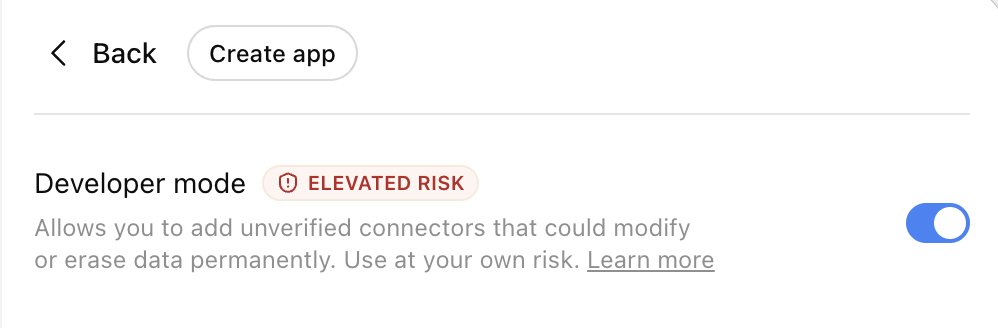
Go to Settings → Apps → Advanced settings.
-
Turn on Developer Mode, then click Create apps.
-
When the new app configuration screen is displayed, enter the following values:
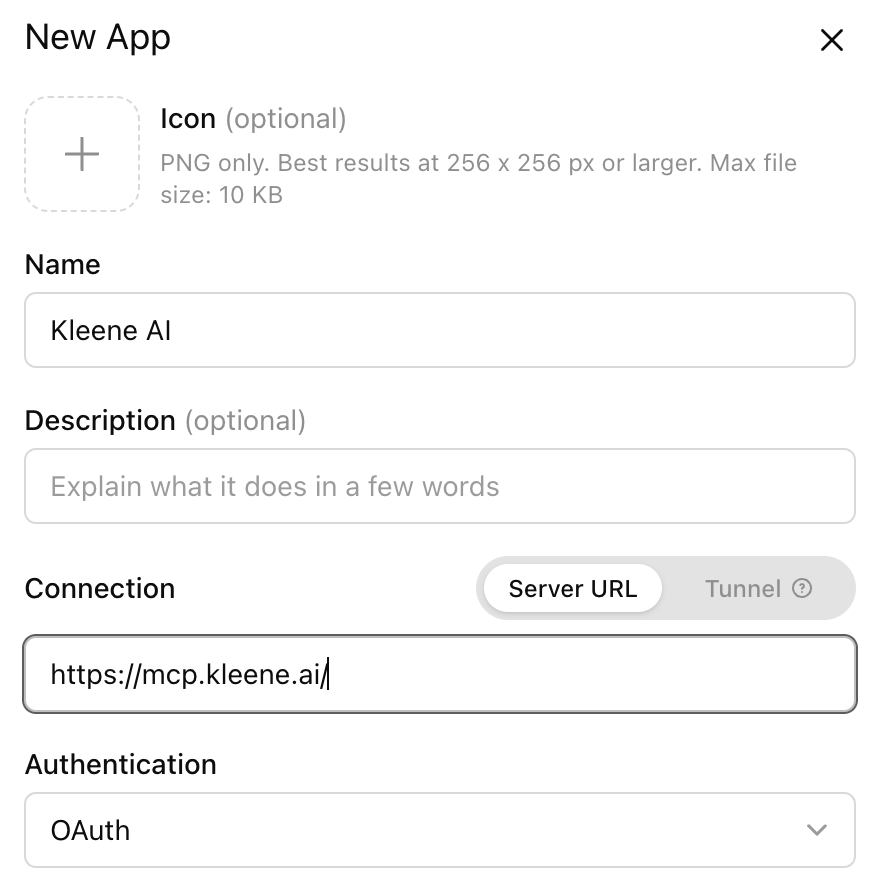
Field Value Name KleeneMCP Server URL https://mcp.kleene.ai/Authentication OAuth -
Click Create.
-
Complete the authentication flow by signing in to Kleene and granting the required permissions.
-
Enable Kleene in conversations when needed.
What you can do with Kleene MCP
Search and inspect transforms
Find transforms and transform groups, retrieve SQL, check configuration, and understand existing logic.
Example prompts:
- “Show me the SQL for the customer LTV transform.”
- “Find all transforms in the marketing pipeline group.”
- “Which transforms reference the orders table?”
Generate and improve SQL
Describe what you need in plain English, then use your AI client to draft or improve SQL. Where write access is enabled, proposed changes can be sent to sandbox for review and testing.
Example prompts:
- “Write a transform that calculates 30-day rolling revenue by customer.”
- “Rewrite this join to reduce query cost.”
- “Create a weekly cohort retention transform in sandbox.”
Nothing is committed to production automatically. Write access follows your existing Kleene role permissions, and changes are reviewed before they are applied.
Debug pipeline and transform issues
Ask about recent failures, retrieve logs, and understand errors without manually digging through run output.
Example prompts:
- “Why did the orders pipeline fail last night?”
- “Show me errors from the last run of the revenue transform.”
- “What does this error mean, and how should I fix it?”
Explore schemas and table data
Browse warehouse tables, inspect column names and data types, and preview small samples where your organisation has enabled that capability.
Example prompts:
- “What columns are on the orders table?”
- “What tables are in the ecommerce schema?”
- “Show me a sample of the sessions data.”
By default, data previews are protected: personally identifiable information is obfuscated before preview rows are returned, unless your organisation has explicitly enabled raw preview access.
Analyse and report on warehouse data
Ask to analyse data available in your warehouse, summarise trends, and help draft reports from the tables and schemas your account can access.
Example prompts:
- “Analyse revenue by customer segment for the last quarter.”
- “Summarise weekly order trends from the ecommerce schema.”
- “Create a report showing session volume, conversion rate, and revenue by channel.”
Get answers from Kleene documentation
Ask product and workflow questions grounded in Kleene documentation.
Example prompts:
- “How does pipeline scheduling work?”
- “What’s the recommended pattern for incremental transforms?”
- “How do I set up an Asana source connector?”
Updated 3 months ago