
File Ingest
Use File ingest to load one-off data, such as a lookup list, a budget or a manual export, into your warehouse. You can either:
- Create a new table from the file, or
- Add the rows to an existing File ingest table, for example to load this month's version of a recurring file.
Both options follow the same flow. They only differ at the Select table step.
Before you start
- The first row should contain column names, or the file should have no header at all. Remove any title rows or notes above the data.
- Delete empty columns and totals rows.
- Importing into an existing table? Make sure the file has the same columns as that table, and back up the table first.
Steps
Step 1: Upload your file
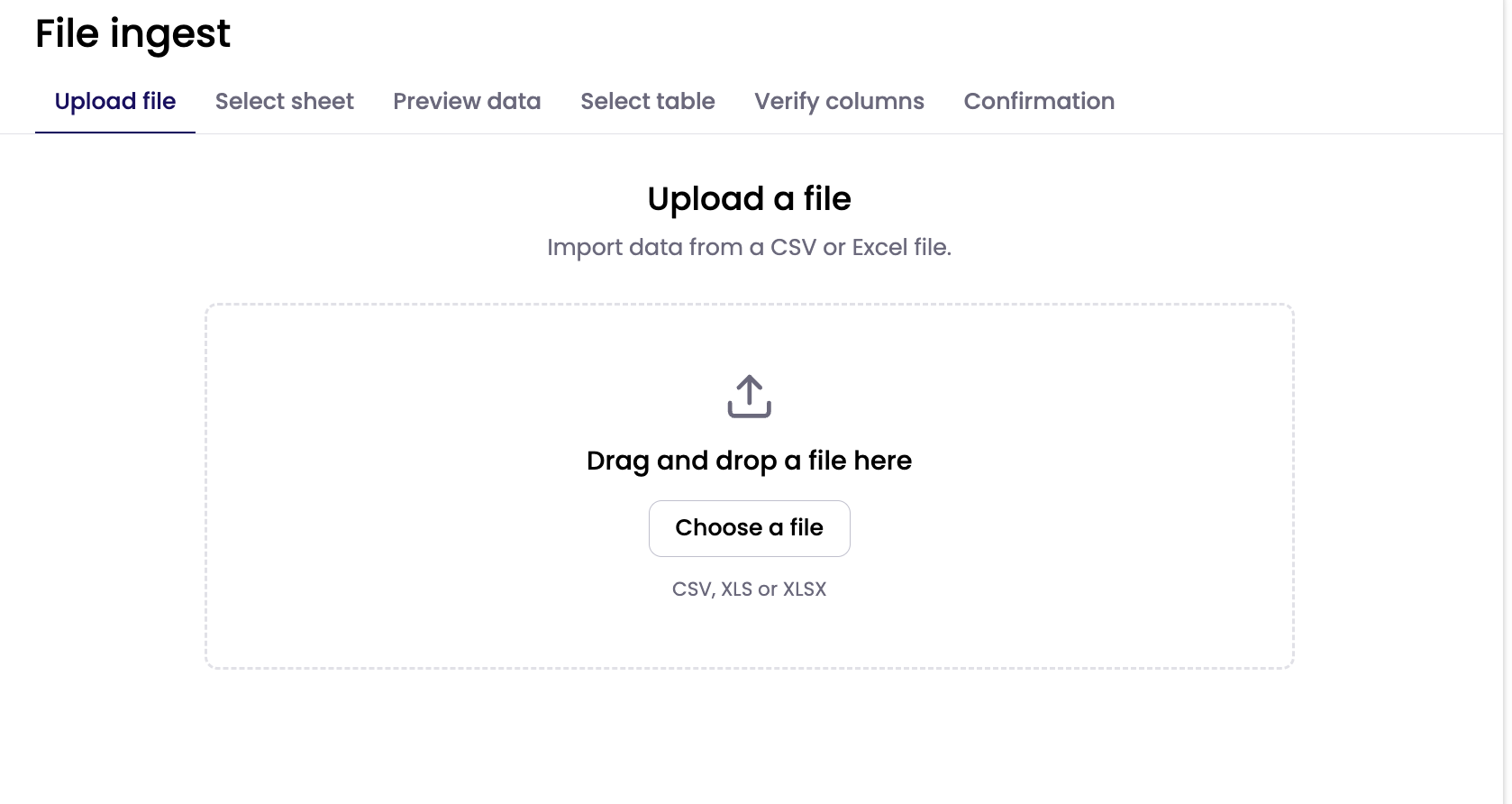
Under Ingest in the left-hand navigation, select File ingest. Drag your file onto the upload area, or click Choose a file.
Step 2: Select a sheet (Excel only)
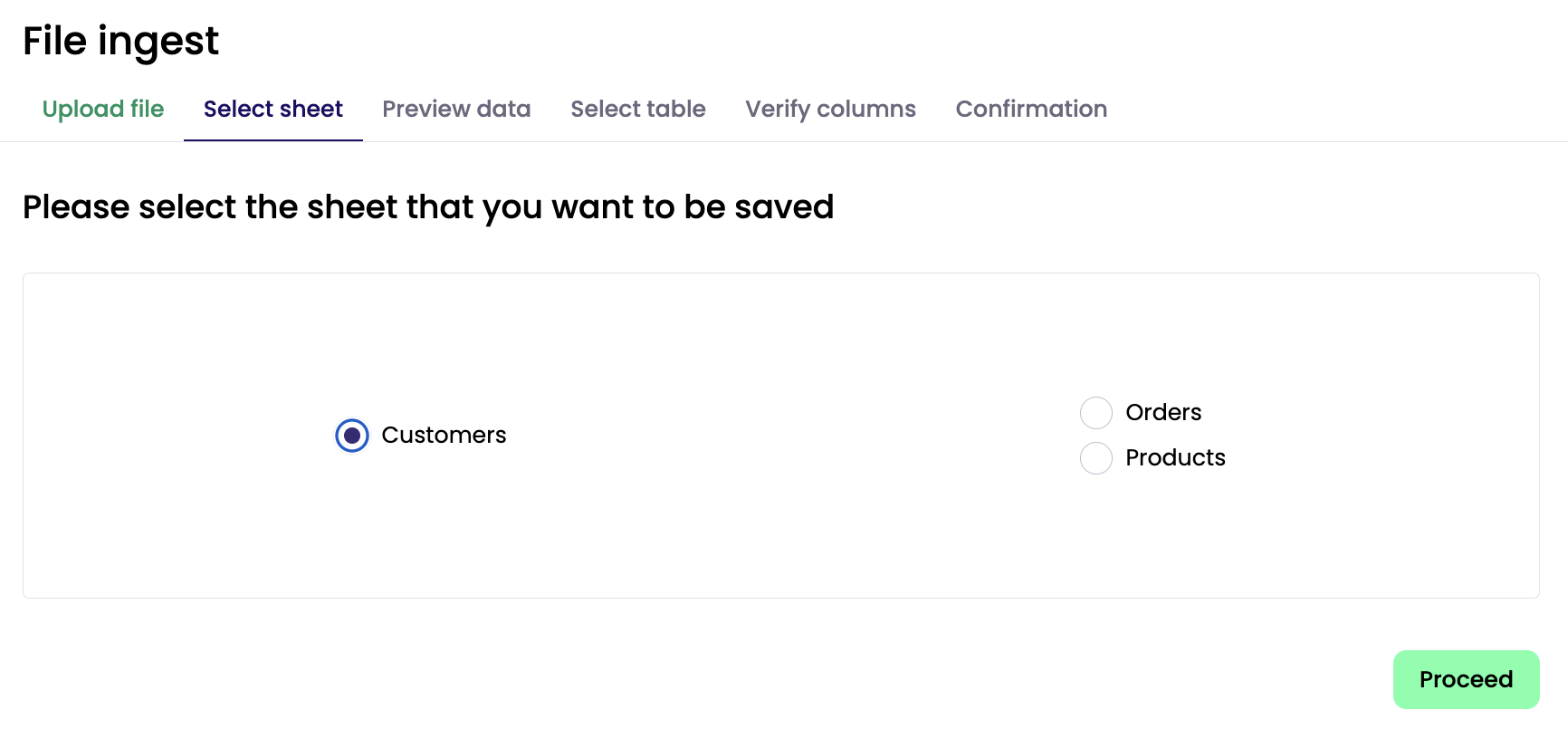
Choose the sheet to import, then click Proceed. Only one sheet is imported per run. CSV files skip this step.
For workbooks with several sheets, see importing multiple sheets.
Step 3: Confirm the header row
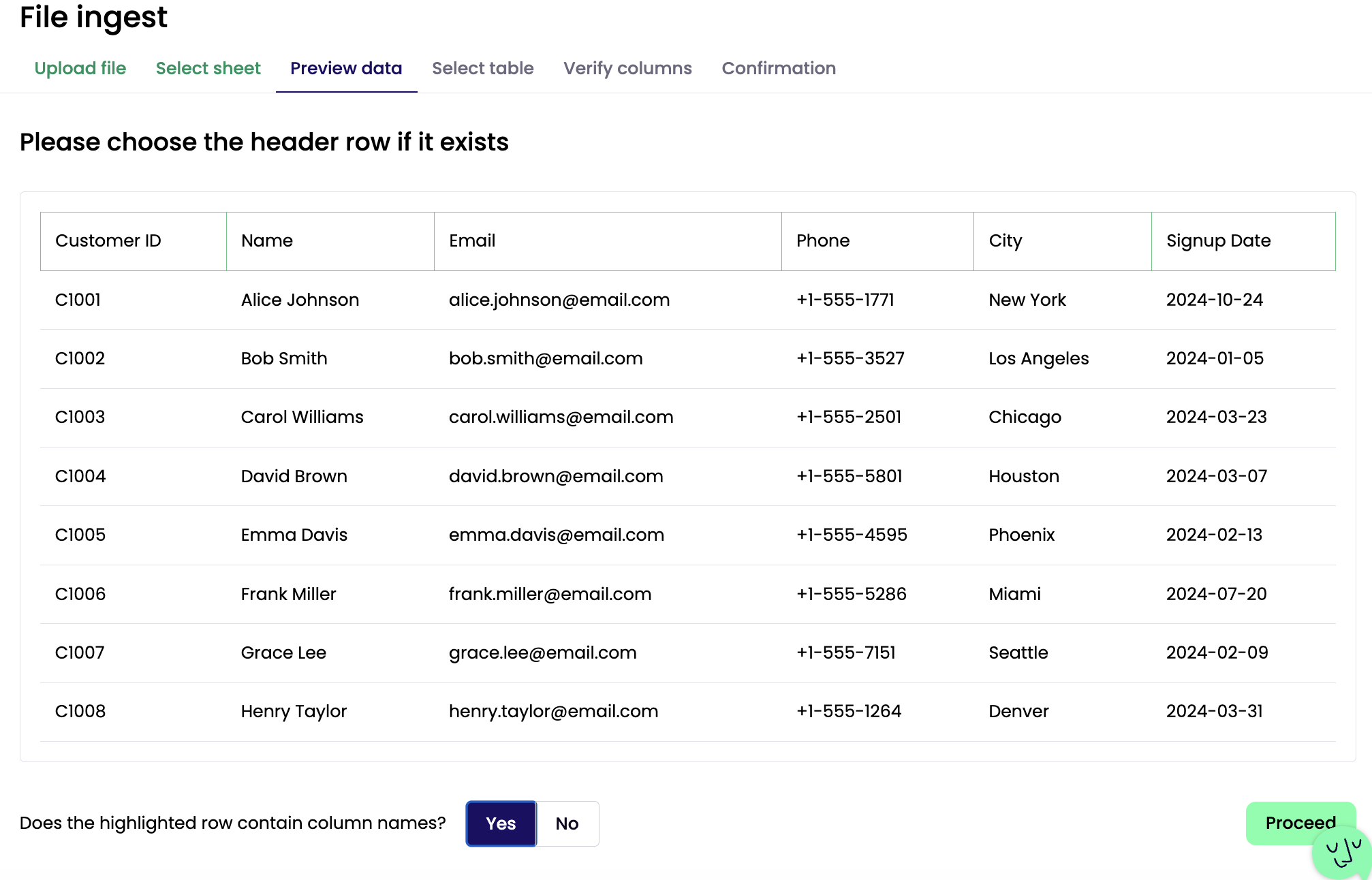
Check the preview. Select Yes if the highlighted row contains your column names, or No if the file has no header row. Then click Proceed.
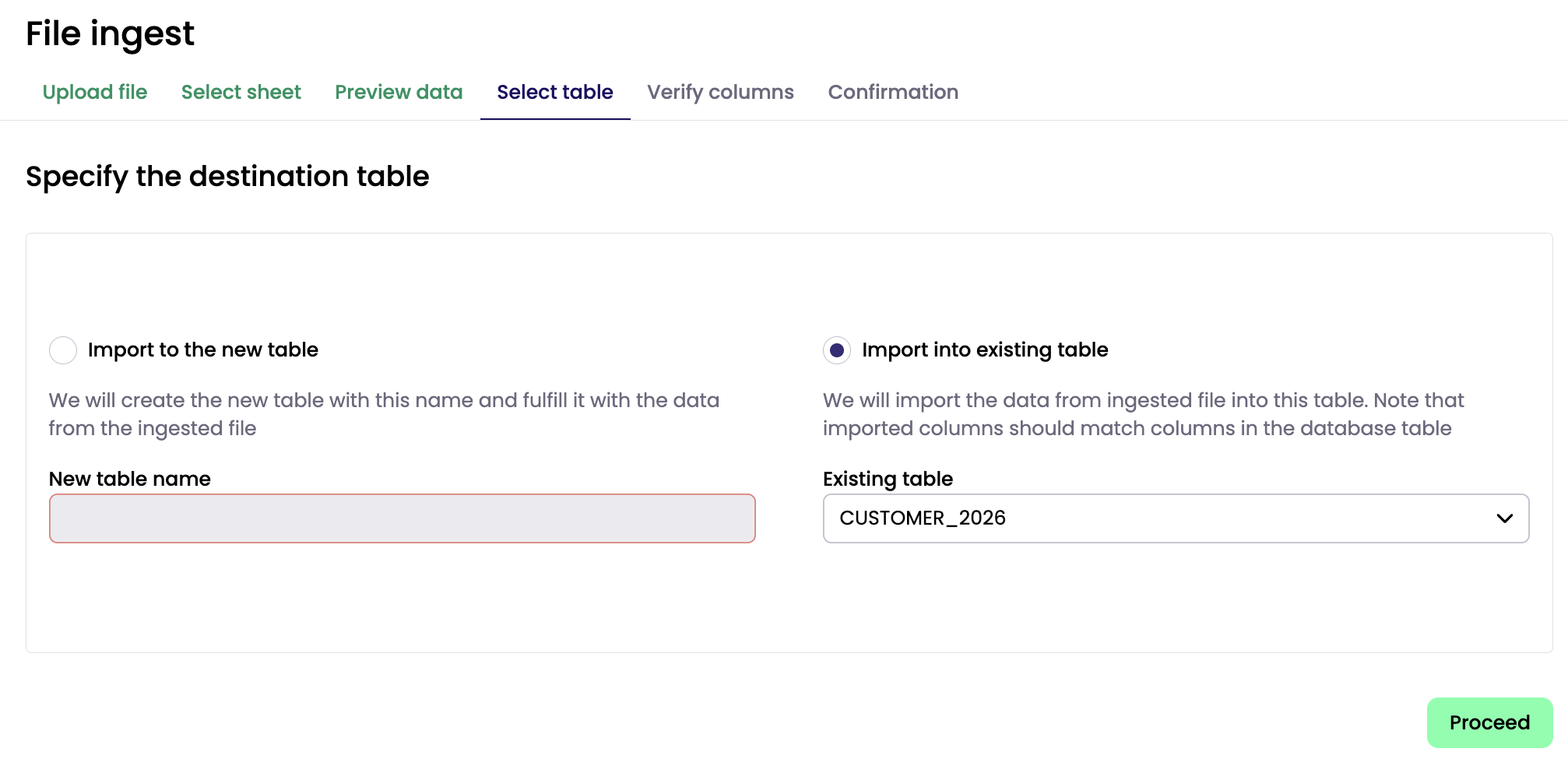
Step 4: Choose the destination table
Pick one of the two options.
Option A: Import to a new table
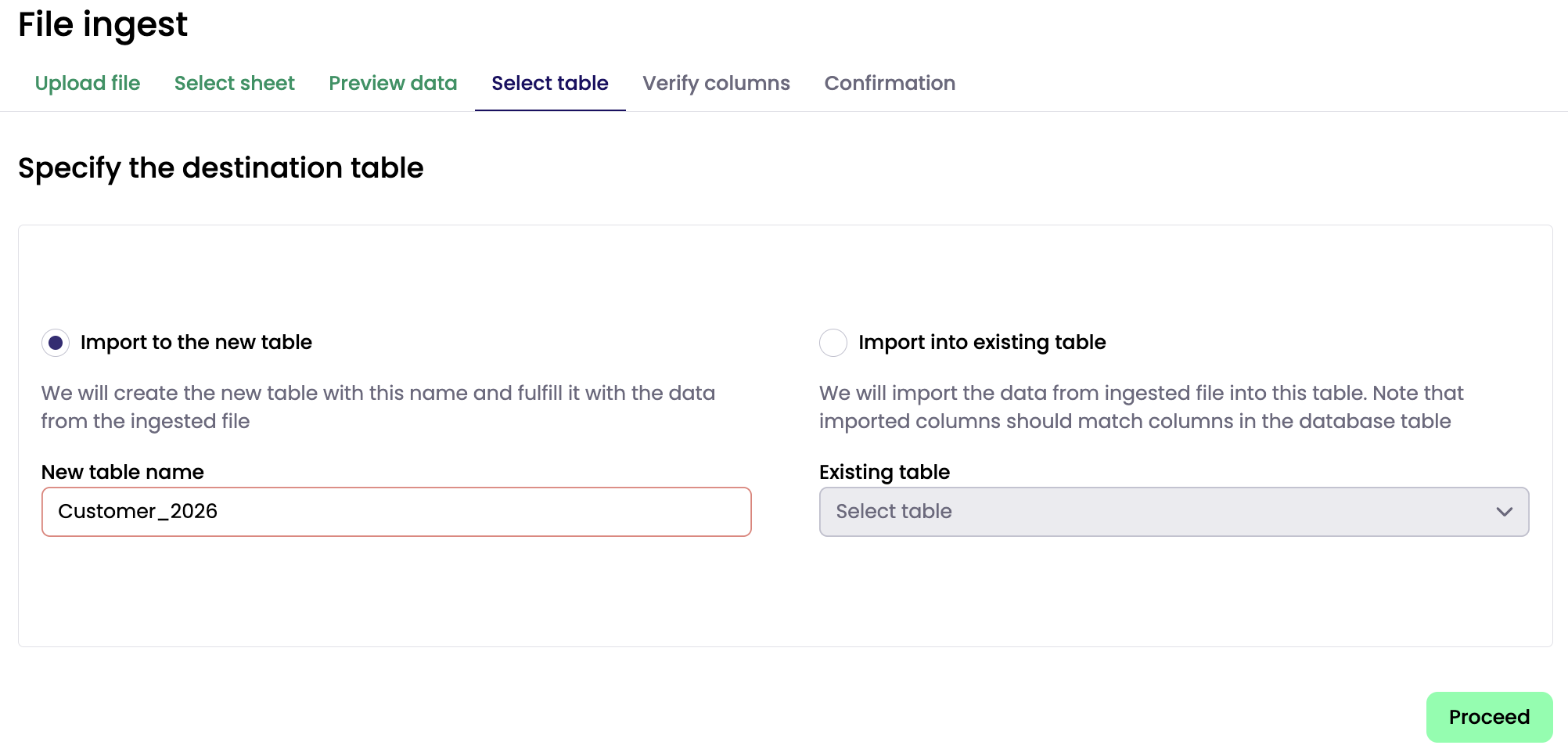
Keep Import to the new table selected and enter a New table name. Use lowercase letters and underscores, such as customers_2026. Click Proceed and continue to Step 5.
Option B: Import into an existing table
Select Import into existing table, choose the table from the Existing table list, then click Proceed.
The import starts as soon as you click ProceedWhen you import into an existing table, the Verify columns step is skipped and the data is imported straight away. Check your file before you click Proceed.
Rows are added to the table. Existing rows are not replaced or updated. Each load gets its own import_date, so you can tell loads apart or keep only the latest one in a transform.
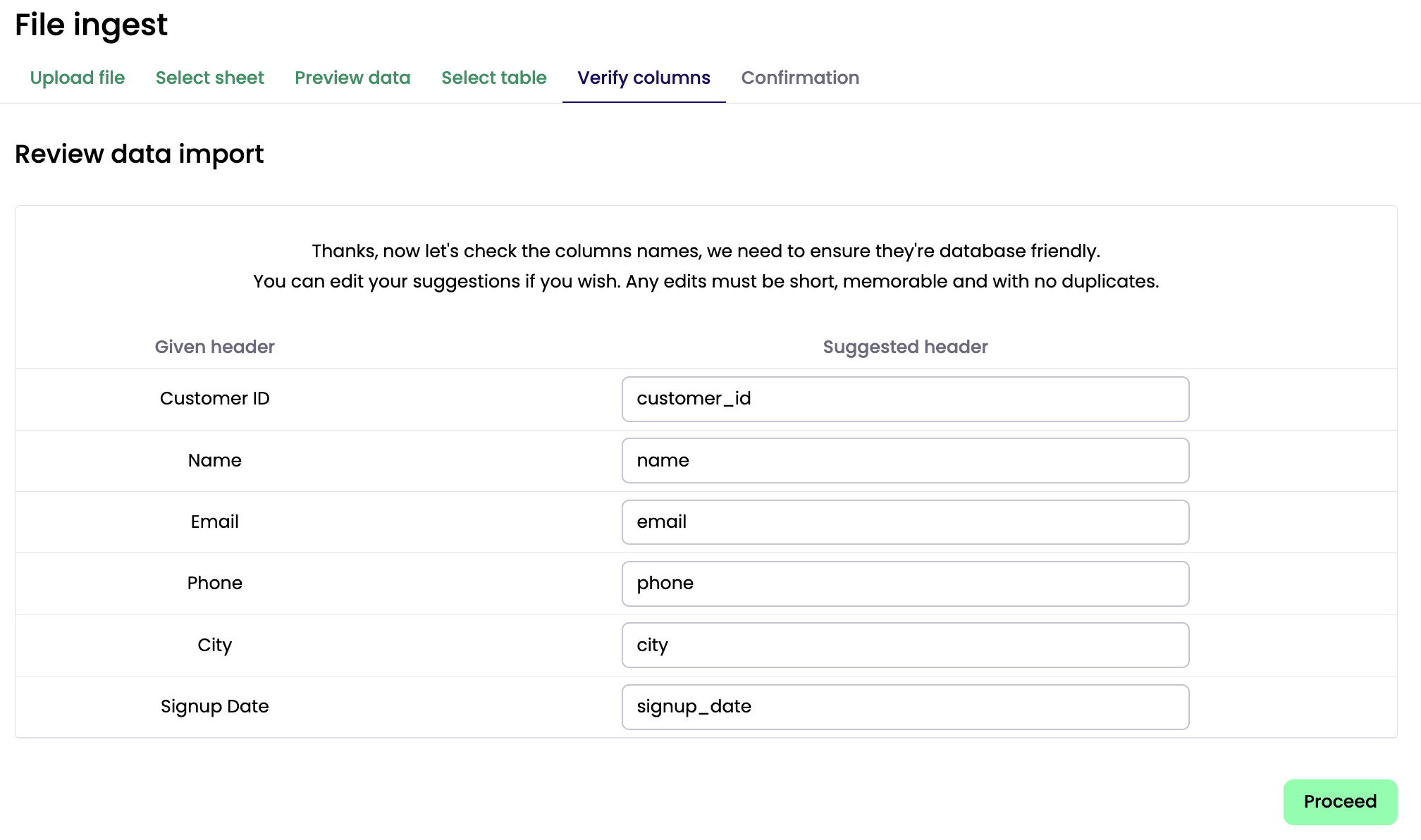
Step 5: Review column names (new tables only)
Kleene suggests a database-friendly name for each column. Names are lowercased, and spaces and special characters become underscores, so Customer ID becomes customer_id. You can edit any suggestion, but names must be unique.
We recommend keeping the suggestions and doing any further renaming in the Transform layer. Click Proceed to start the import.
Step 6: Check the confirmation
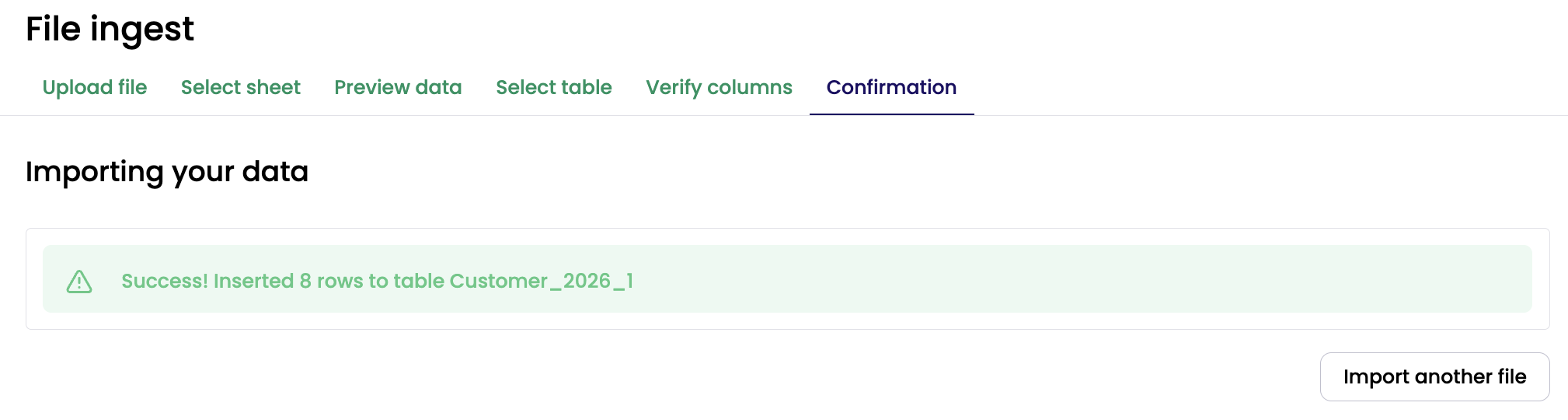
A success message shows how many rows were inserted and into which table. Click Import another file to load more data.
Importing multiple sheets
Each run imports one sheet into one table. To load several sheets from the same workbook:
- Upload the workbook, select the first sheet and complete the flow.
- On the confirmation screen, click Import another file.
- Upload the same workbook again and select the next sheet.
- Repeat for each sheet you need.
For example, a workbook with Customers, Orders and Products sheets becomes three tables: sales_customers, sales_orders and sales_products.
Tips
- Use a shared prefix (such as
sales_) so related tables are easy to find. - Check the header row for every sheet. Layouts often differ between sheets.
- Only import sheets that are plain tables, with one header row and one record per row. Skip notes, pivots and charts.
- To refresh a sheet later, import it into its existing table (Option B) rather than creating a new table each time.
Back up before inserting
Rows added to an existing table can't be undone from File ingest. Before a large or unfamiliar load, take a copy of the table in the SQL console. This example uses Snowflake syntax:
CREATE TABLE kleene_fileingest.customers_2026_backup
CLONE kleene_fileingest.customers_2026;
Query your data
All File ingest tables are created in the kleene_fileingest schema. You can query them in the SQL console and use them in transforms like any other table:
SELECT *
FROM kleene_fileingest.customers_2026
ORDER BY import_date DESC;- All columns are stored as text (VARCHAR), including dates and numbers. Convert them in a transform, for example with
TO_DATE(signup_date)orTRY_TO_NUMBER(amount). import_dateis added automatically and records when each row was loaded.
Updated 17 days ago