
Version Control Sync
Version Control Sync connects your Kleene workspace to a Git repository (GitHub or Azure DevOps), keeping your transform groups and transforms in sync between the two.
Every group and transform in your workspace is represented as files in the repository:
- Each group is a
.jsonfile at the root of the repo (e.g.Finance.json). - Each transform lives inside its group's folder as two files — a
.sqlfile containing the SQL command and a.jsonfile containing all other settings (e.g.Finance/Revenue_Summary.sqlandFinance/Revenue_Summary.json).
Setup
Prerequisites
- Kleene: Admin access to the workspace
- GitHub: Your GitHub organization must allow GitHub App installations.
- Azure DevOps: Access to an Azure DevOps organization with at least one Git repository and Project Admin permissions (so Kleene can create the required webhook/service hook automatically).
GitHub
-
In Kleene, go to App Settings → Account.
-
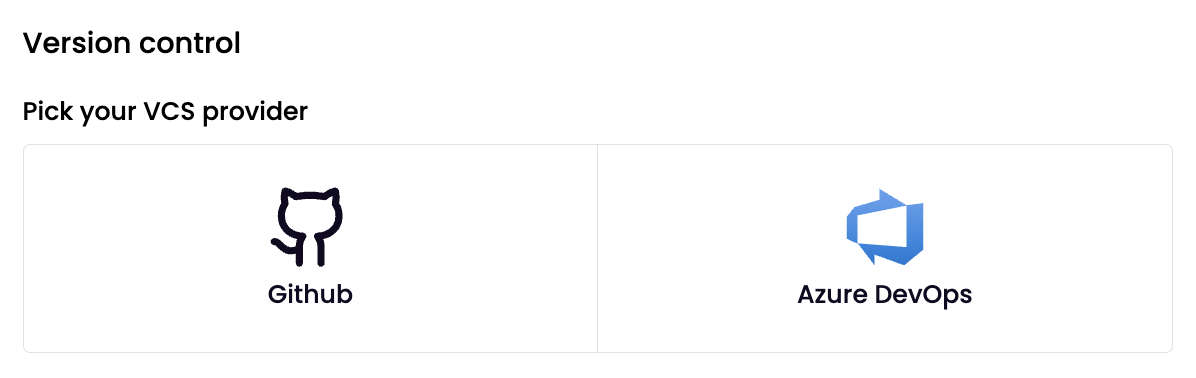
Find the Version control card and click GitHub.
-
Click GitHub. This opens a new browser tab taking you to GitHub.
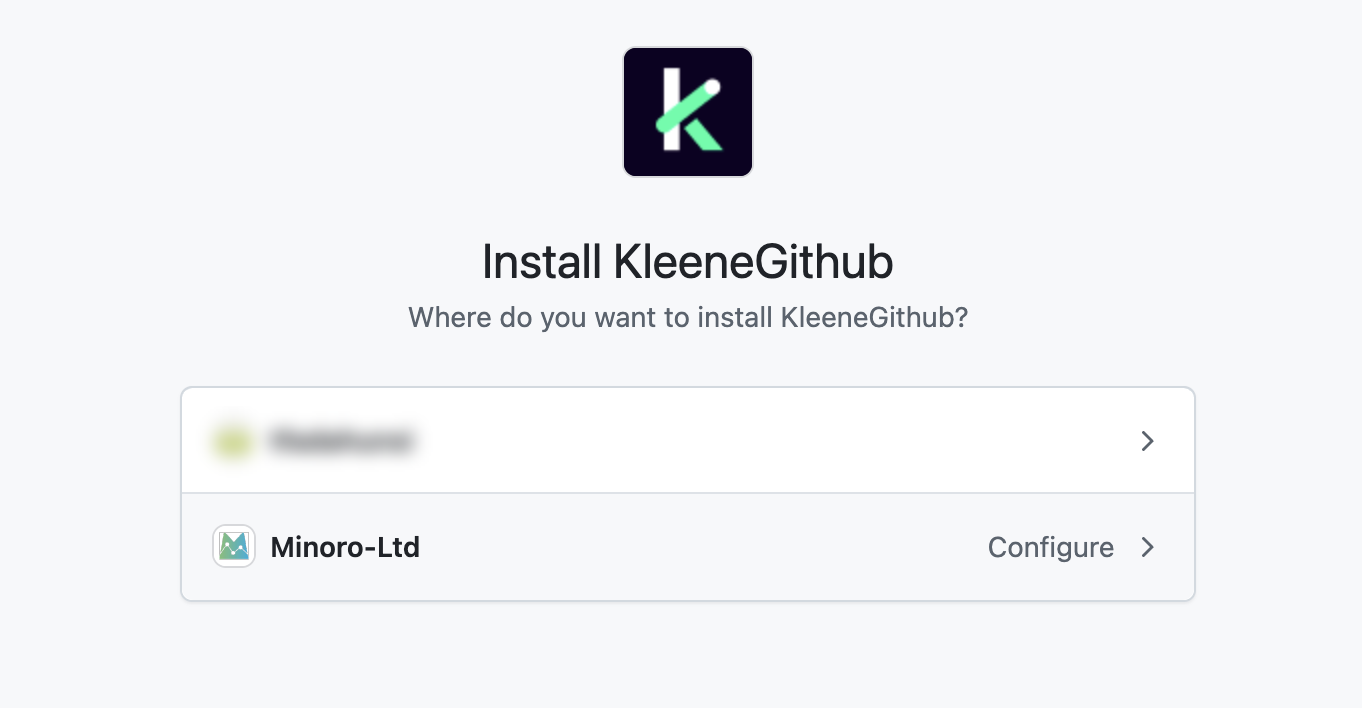
- On GitHub, select the organization and repository (or repositories) you want to grant access to, then click Install.
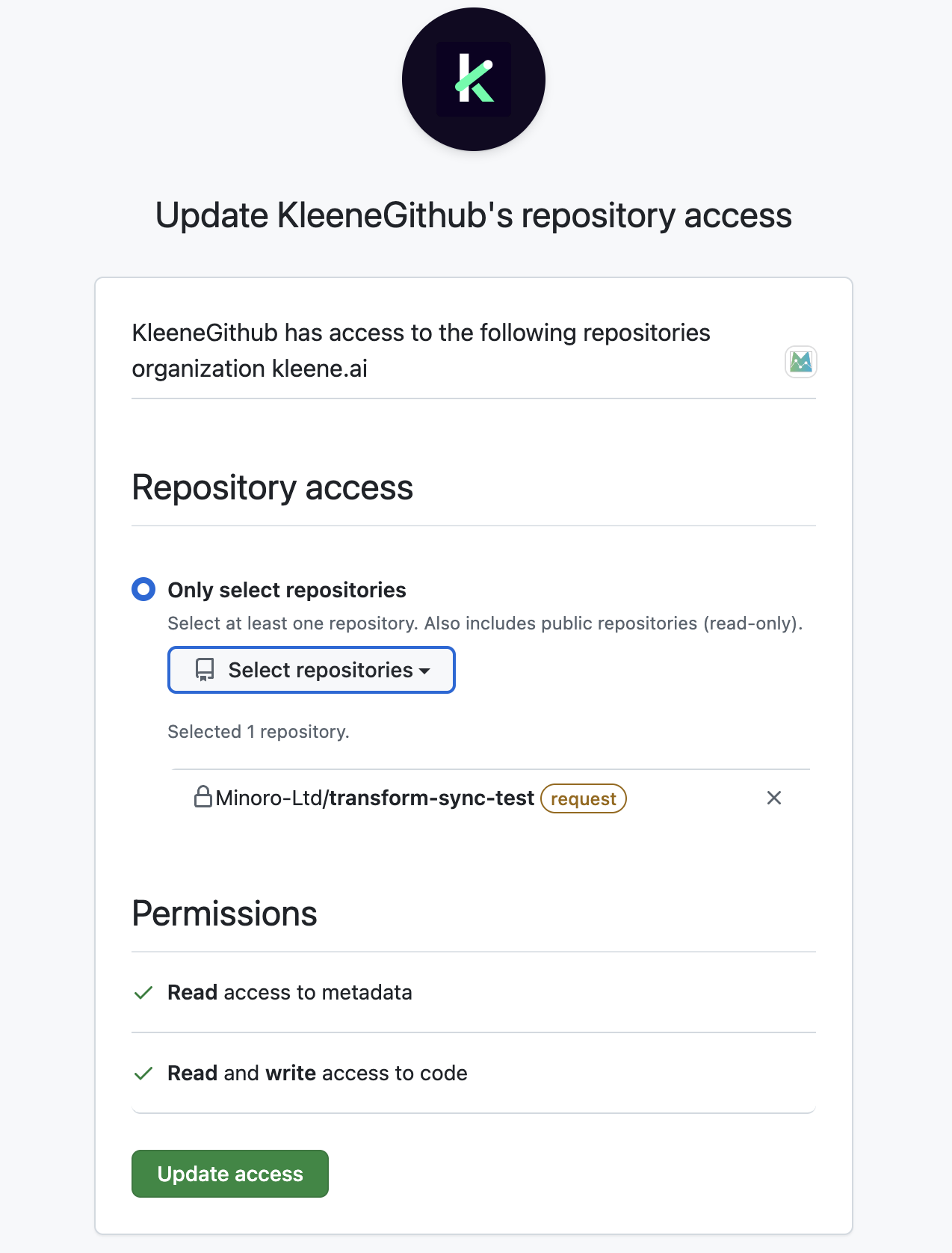
- The Version control card now shows the connected state with a configuration form.
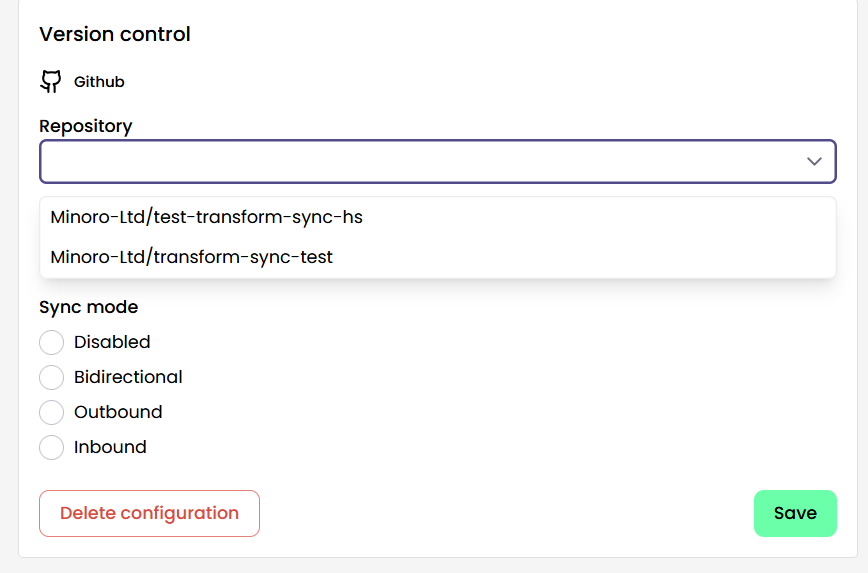
- Configure the form and click Save.
Azure DevOps
-
In Kleene, go to App Settings → Account.
-
Find the Version control card and click Azure DevOps
-
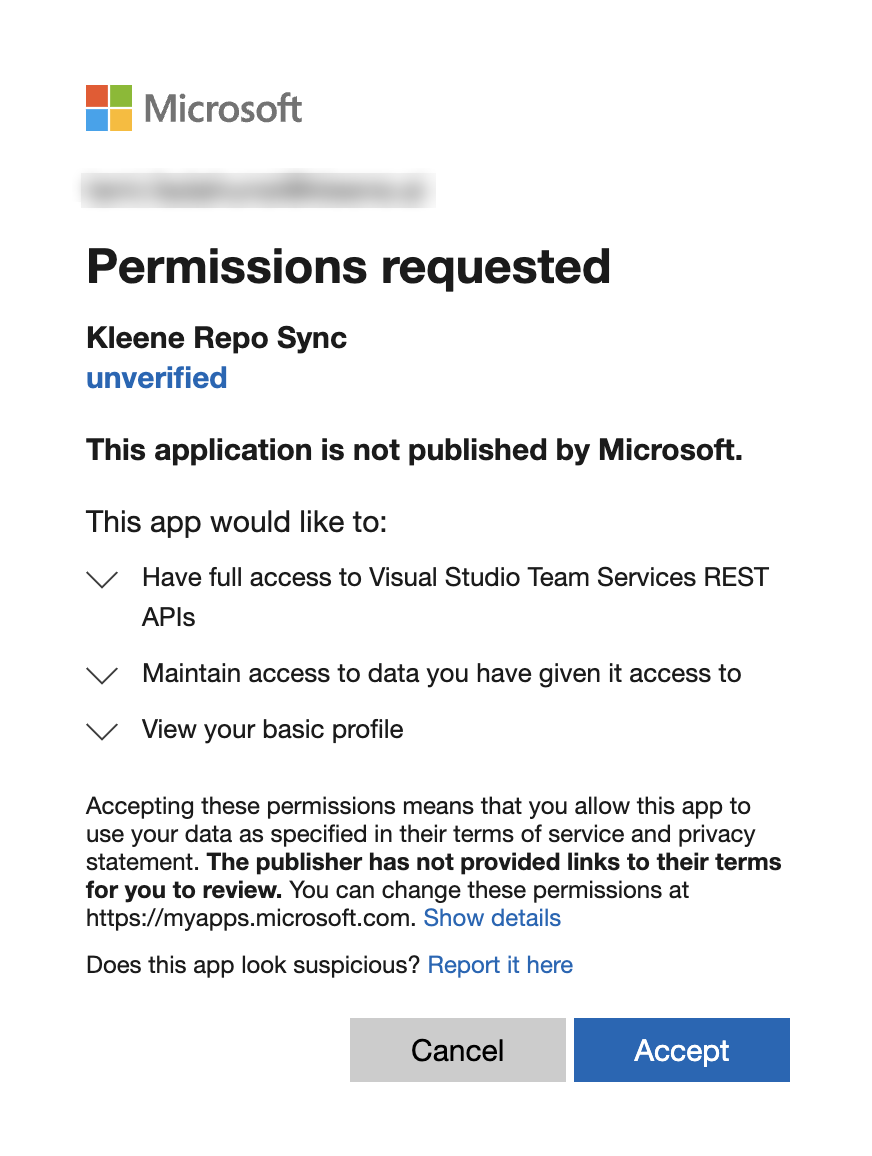
This opens a new browser tab taking you to Microsoft's login/consent screen.
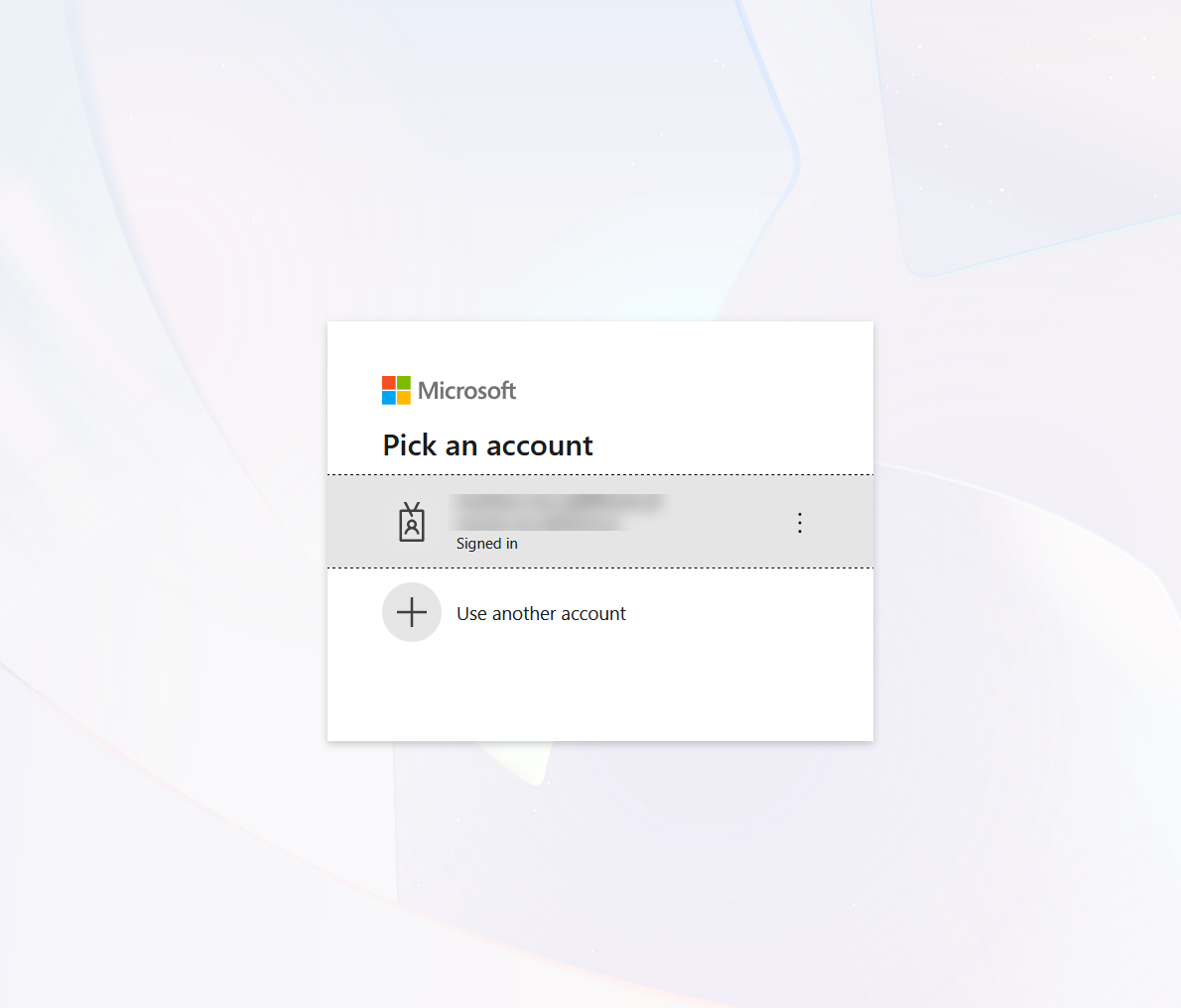
- Sign in with your Azure DevOps account and grant consent. You're authorising Kleene to access your repositories on your behalf.
- You're redirected back to Kleene. The Version control card now shows the connected state with a configuration form.
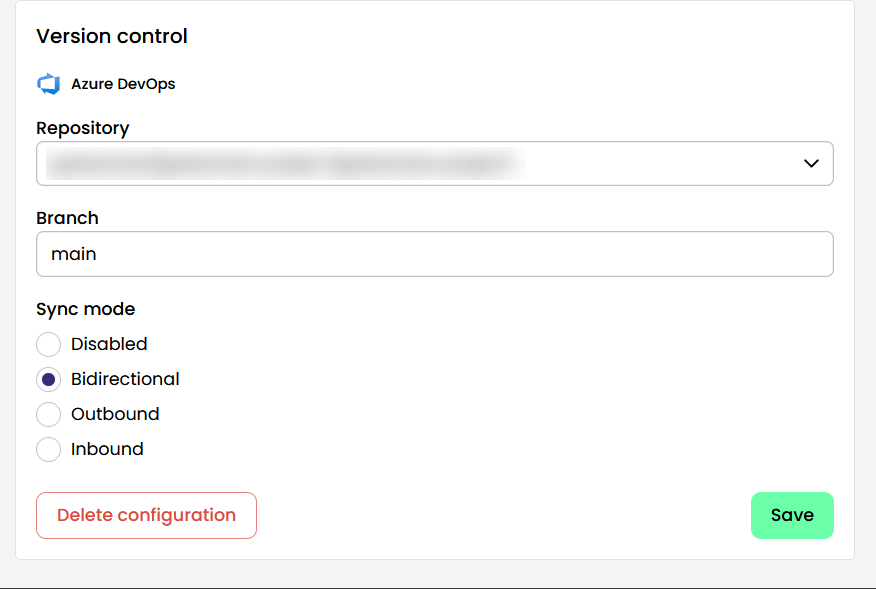
- Configure the form and click Save.
For Azure DevOps, choosing Inbound or Bidirectional will auto-create a webhook/service hook (requires Project Admin permissions).
Connecting has no effect on existing transforms, in either direction. Existing files are ignored unless you full-sync; Full-syncs in both directions are non-destructive
Link Github
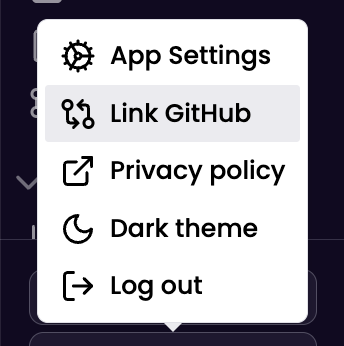
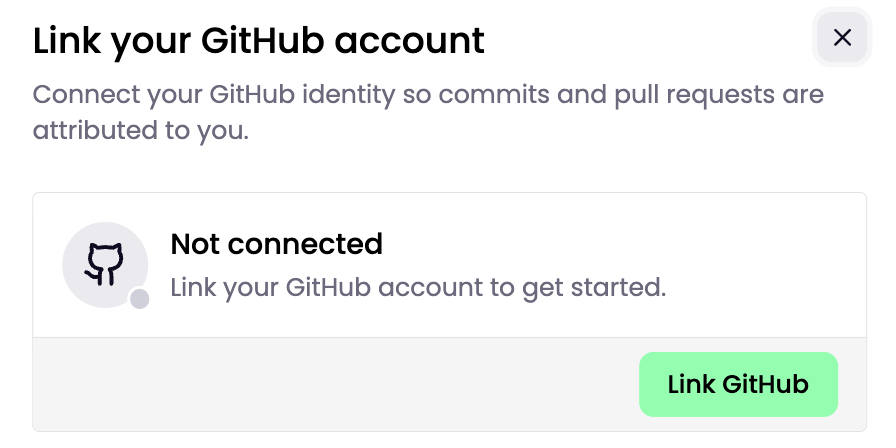
Click your profile in the bottom-left of the page, click Link GitHub, then follow the OAuth sign-in flow to connect your account.
This links your GitHub account to your individual Kleene user, so when changes sync to Git, commits are attributed to you.
Note: If you’re not part of the GitHub organization, commits may not appear on your GitHub contributions graph.
To unlink, click your profile again and choose Unlink/Remove link.
Sync Mode
Sync mode controls which direction changes flow between your Kleene workspace and the connected Git repository, and how updates are applied.
| Sync Mode | What It Does |
|---|---|
| Disabled | No syncing happens; Kleene stays connected to the repo, but it won’t push changes to Git or pull changes from Git. Use this to pause syncing without deleting the configuration. |
| Outbound | Any create/update/rename/delete you make to groups or transforms in Kleene is automatically committed to your connected Git repo. A group is saved as GroupName.json, and a transform is saved as GroupName/TransformName.sql + GroupName/TransformName.json (e.g., Finance.json or Finance/Revenue_Summary.sql + Finance/Revenue_Summary.json). On GitHub, commits are authored by the Kleene GitHub App bot. On Azure DevOps, commits are authored by the user whose OAuth token was used to connect the integration. |
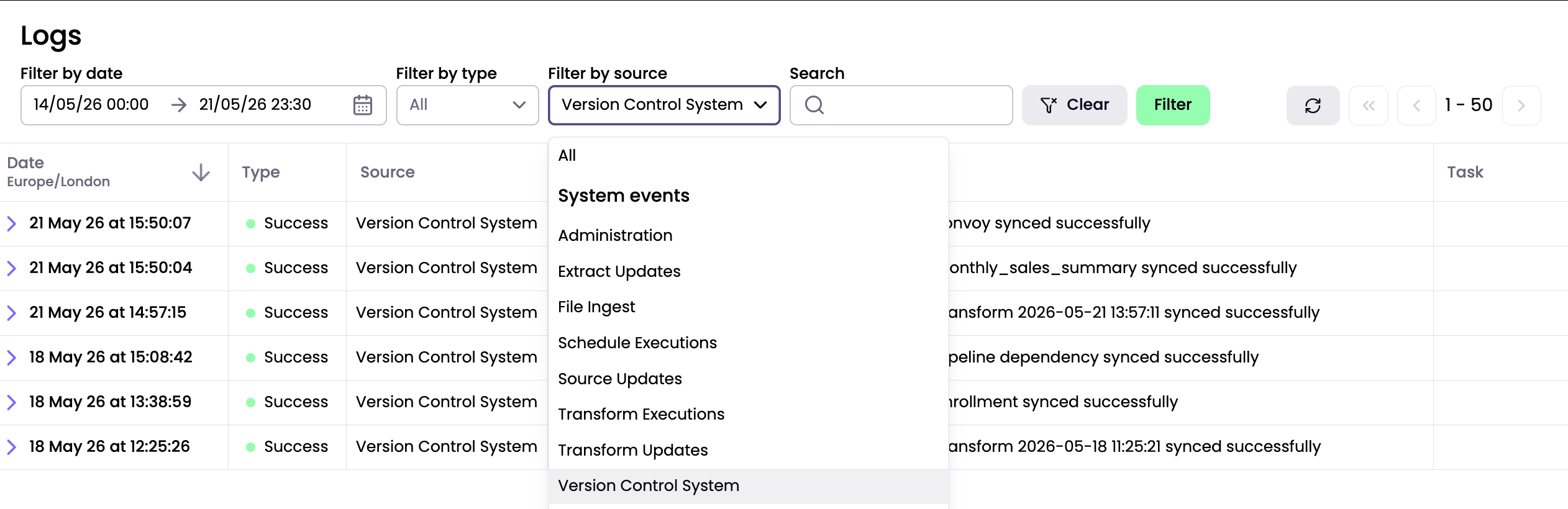
| Inbound | Pushes to the configured branch are synced into Kleene by reading the changed files and applying the equivalent create/update/delete actions for groups and transforms. Example: pushing a change in Finance/Revenue_Summary.sql updates that transform in Kleene, and deleting Finance.json deletes the Finance group (and its transforms). All inbound changes are attributed to vcs-sync in logs. |
| Bidirectional | Both directions run. Kleene changes commit to Git, and Git pushes update Kleene. Example: edit a transform in Kleene → commit appears in Git; later merge a PR that changes Finance/Revenue_Summary.sql → Kleene updates the transform automatically. |
Full Sync

Use Full Sync to manually sync everything at once and bring Kleene and the connected Git repository back into alignment.
- Sync all outbound (Kleene → Git): writes every group and transform in your workspace to the repository.
- Sync all inbound (Git → Kleene): reads the entire repository and applies it to your workspace.
Use Full Sync when you need to seed a newly connected repository, load an existing repository into a fresh workspace, or fix drift after incremental syncs were missed or disabled.
Critical ruleFull Sync adds/updates only; it never deletes. The target side becomes a superset, not an exact mirror. Remove unwanted items manually on both sides.
Audit Logs:
To view logs for changes from Git, go to the logs page and filter by sources using the Version Control System option.
Recommended Git Practices
Merge Strategy
Use squash merge for all PRs. Each pull request should land as a single commit on your main branch. This gives the sync system a clean, unambiguous set of changes to process and produces a readable repo history.
- Azure DevOps: Branch Policies → Set "Squash merge" as the only allowed completion option
- GitHub: Repository Settings → Pull Requests → Enable "Allow squash merging", disable the others
Branch Workflow
Push your branch to the remote before merging. Avoid merging local-only branches directly into main — the sync system may miss changes that only appear in the merge commit's diff.
Commit Hygiene
One logical change per PR. Creating a group, renaming a group, and deleting a group should each be separate PRs where possible. Bundling destructive and additive operations in one push makes failures harder to diagnose.
Don't rename and modify in the same commit. If you rename a transform file and also change its SQL, split them into separate commits or PRs. Rename detection works on file path diffs — simultaneous content changes can confuse the classification.
What to Avoid
- Squashing a branch that contains both a create and a delete of the same file — the net effect is nothing, which is correct, but double-check the intent
- Manually editing
.kleene-meta.json— it is fully managed by the sync system and manual edits will be overwritten or cause ID conflicts - Renaming files outside of your git client (e.g. via the Azure DevOps web editor rename) — use your local git tooling so rename operations are tracked correctly as renames, not delete + add
Updated 2 months ago